Quick answer
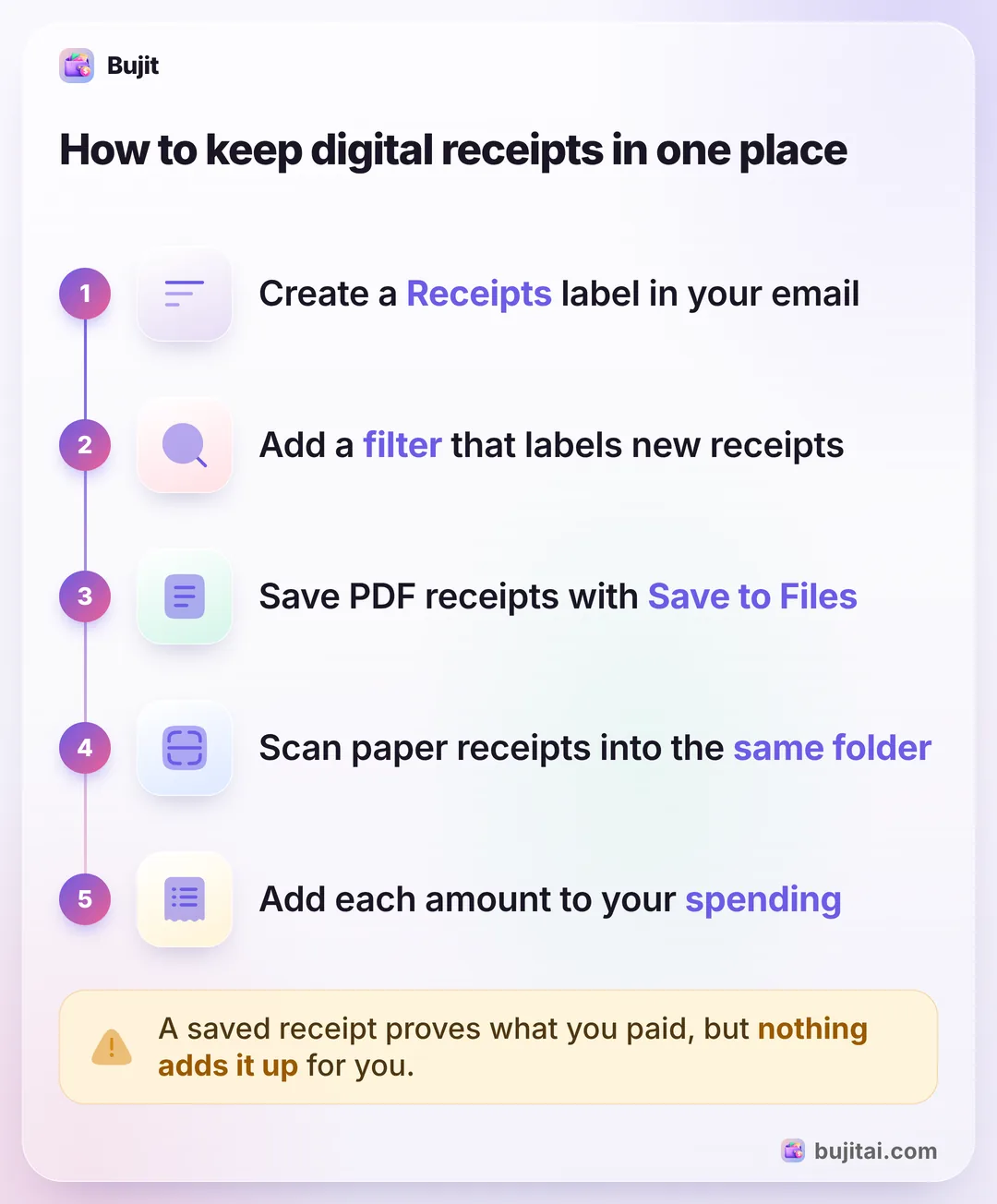
Digital receipts are proofs of purchase you get by email, text or in a store's app instead of on paper. To keep them in one place, create a Receipts label in your email with a filter that adds new receipts to it, and save PDF receipts to one folder in Files. Then log each amount in an expense tracker.
- Where they arrive
- Email, text, a store's app or account
- In Gmail
- A Receipts label and a filter
- In Mail on iPhone
- The Transactions category
- Easy to miss
- Nothing adds up the totals
On this page
What digital receipts are
A digital receipt, also called an e-receipt or electronic receipt, is a proof of purchase you get on a screen instead of on paper. They come from a few places:
- Email: online shops almost always email one, and many stores email one at the register when you give your address or skip the paper copy.
- Text message: some card readers offer to text the receipt to your phone.
- A store's app or website: the order history in your account.
- PDF attachments: invoices, bills and statements sent as files.
They usually show what a paper receipt shows: the shop, the date, what you bought, the amount and how you paid. Unlike paper, they don't fade in a drawer, and you can search for them. The catch is that they end up scattered across inboxes, apps and texts.
If you're self-employed or run a business, the IRS says all requirements that apply to paper records also apply to electronic records. Your supporting documents should show who you paid, the amount, proof of payment, the date and a description of what you bought, and you may need more than one, such as a receipt and a card statement. The IRS suggests keeping them in an orderly fashion and in a safe place, for instance by year and type of expense.
How to keep digital receipts in one place
These steps use Gmail on a computer and the Mail and Files apps on iPhone with iOS 27. Other email services have their own labels or folders and rules that work the same way.
- Create a Receipts label. In Gmail on your computer, on the left, next to Labels, click Create new label, enter a name such as Receipts and click Create. Gmail points out that labels aren't folders: when you delete an email, it's removed from every label, so deleting a receipt from your inbox deletes it from Receipts too.
- Add a filter so new receipts file themselves. In the search box at the top, click Show search options and enter words your receipts use, such as receipt, order or invoice. Click Search to check what shows up, then Create filter, choose to apply the Receipts label, and click Create filter. For one store, check the box next to one of its emails, click More, then Filter messages like these.
- On iPhone, open Transactions. Apple's Mail app sorts incoming email into categories, though not in every country or region, and Transactions is the one for confirmations, receipts and shipping notices. Tap a Transactions message to see all of that sender's Transactions messages in one list.
- Save PDF receipts to one folder. In Mail on iPhone, touch and hold the attachment in a message, then choose Save to Files and pick a folder, such as Receipts 2026. For an image receipt, choose Save to Files too; Save Image puts it in Photos instead.
- Add paper receipts to the same folder. In the Files app, tap the More button, then Scan Documents, and hold your iPhone over the receipt. Scan the receipt, tap Done, choose the same folder and tap Save.
- Catch the ones in apps and texts. For a receipt that only lives in a store's app, a website or a text, download the PDF if there is one, or take a screenshot.
Notes can scan paper receipts too, and every free way to scan receipts on iPhone has the steps. If your receipts are mostly paper and you'd rather have an app read them, how to pick a receipt scanner app compares a few by what the receipts are for.
What a folder of receipts doesn't do
- It doesn't add anything up. Forty receipts under one label prove forty purchases, but not what you spent on groceries this month.
- It only catches what matches. A filter labels only the emails that use its words, so a receipt that doesn't never gets the label, and Mail's Transactions category isn't available everywhere.
- It misses what you never file. Cash with no slip, purchases where you didn't ask for a receipt, and receipts in apps you rarely open stay out of it.
- It splits across accounts. A personal Gmail, a work address, store apps and Photos each hold part of the pile.
| Email label and filter | Mail's Transactions | A folder in Files | Bujit | |
|---|---|---|---|---|
| Gathers new receipts by itself | The ones your filter matches | Sorted by Mail, where available | ||
| Keeps the receipt itself | The photo you scan, with the expense | |||
| Adds up what you spent | By month and category | |||
| Includes paper receipts and cash | Paper, if you scan it |
How to add digital receipts to Bujit
Bujit, the expense tracker we make, doesn't connect to your email or your bank, so it doesn't import emailed receipts or match them to card charges. You add each purchase once, from a screenshot or by typing it, and it counts in your month with its category. There's no bank login and no account.
In Bujit
Get Bujit- Take a screenshot of the receipt. Open the email, text or store app, and capture the part with the shop, the total and the date.
- Tap + at the top right, then Scan Receipt. If you haven't turned on Bujit's AI features yet, it asks you first, and if you need Bujit Pro, it shows you the plans.
- Tap Choose Photo and pick the screenshot. For a paper receipt, tap Open Camera instead.
- Check what Bujit read, then save. It fills in the shop, the amount, the date and a category. Change any of them before you save. For a receipt with one item, tap Save. For a receipt with several items, tap Save as One for a single expense, or Save Itemized for one expense per item.
No screenshot? Tap +, then Manual Entry, enter the amount, what it was for and the category, and tap Save.
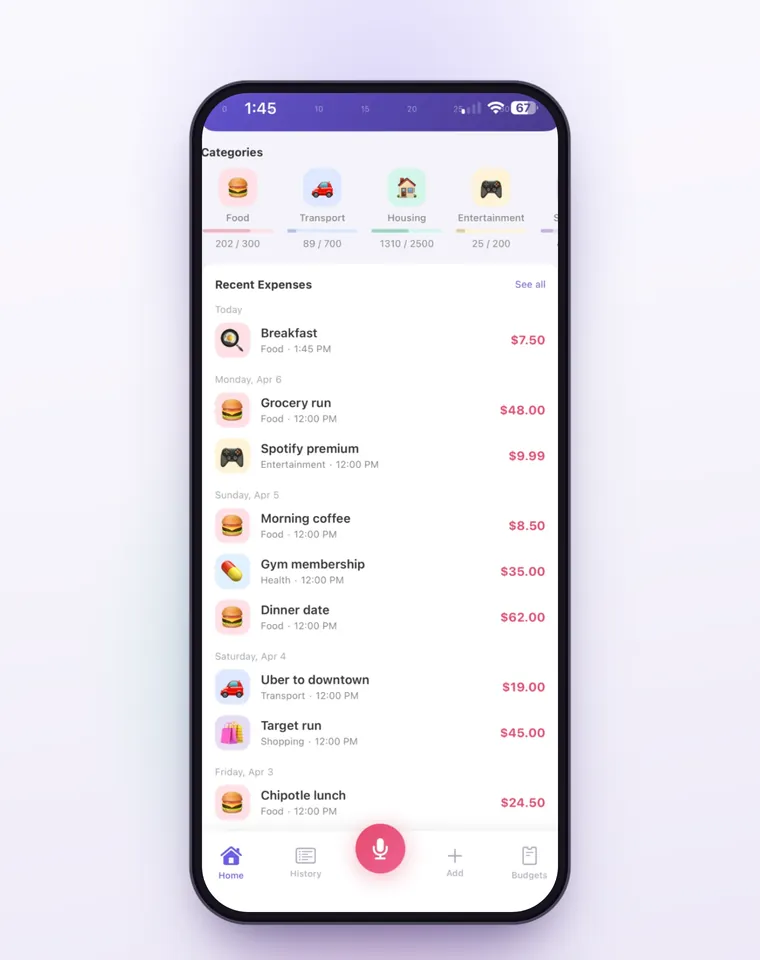
The image you scan is saved with the expense: tap the receipt icon next to the time in your list, or touch and hold the expense and tap View Receipt. Receipt scanning is part of Bujit Pro. The image is sent to our server and on to Google Gemini only after you agree, and the expense and the image are stored on your phone. Keep the original email or PDF as well: that's your copy of the receipt. On iPhone, a Shortcuts automation can also log each Apple Pay purchase when you tap your iPhone to pay, so those don't need a receipt to reach your month.
Which should you use?
- You want every emailed receipt in one place: a Receipts label with a filter in Gmail, or the Transactions category in Mail on iPhone.
- You keep receipts for a business or taxes: save them as files in one folder per year, and keep the card statements that show the payments.
- You get a mix of paper and digital receipts: one folder in Files for the PDFs and your scans.
- You want to know what they add up to: an expense app like Bujit, adding each receipt as it arrives.
Whatever you choose, file receipts the day they arrive, while you still remember what they were for. And before you clear out an old folder, check how long to keep receipts of each kind.
Questions people ask
What is a digital receipt?
A proof of purchase you get on a screen instead of on paper, also called an e-receipt or electronic receipt. It arrives by email, by text, in a store's app or in your account on its website, and usually shows the shop, the date, what you bought, the amount and how you paid.
Do digital receipts count for taxes?
They can if you're self-employed or run a business: the IRS says all requirements that apply to paper records also apply to electronic ones. Supporting documents should show who you paid, the amount, proof of payment, the date and a description, and you may need more than one, such as a receipt and a card statement. The IRS suggests keeping them orderly, for instance by year and type of expense.
How do I organize digital receipts in Gmail?
On a computer, create a label called Receipts: on the left, next to Labels, click Create new label. Then create a filter: in the search box, click Show search options, enter words your receipts use, click Create filter, choose to apply the Receipts label and click Create filter again.
Where are receipts in the Mail app on iPhone?
Mail sorts incoming email into categories, though not in every country or region. Transactions is the one for confirmations, receipts and shipping notices. Tap a Transactions message and you see all of that sender's Transactions messages in one list.
How do I save a receipt that came as an attachment on iPhone?
In Mail, open the message, touch and hold the attachment, then choose Save to Files and pick a folder. If it's an image, Save Image puts it in Photos instead. Keeping receipt PDFs in one folder per year makes them easy to find later.
Can Bujit import my email receipts?
No. Bujit doesn't connect to your email or bank, and it doesn't match receipts to card charges. Take a screenshot of the receipt, then tap + at the top right, Scan Receipt and Choose Photo. Bujit fills in the shop, the amount, the date and a category, which you can change before you save. Receipt scanning is part of Bujit Pro.
Sources
- What kind of records should I keep (IRS) (checked Nov 24, 2026)
- Create & manage labels in Gmail (Gmail Help) (checked Nov 24, 2026)
- Create rules to filter your emails (Gmail Help) (checked Nov 24, 2026)
- Automatically categorize incoming emails in Mail on iPhone (iPhone User Guide) (checked Nov 24, 2026)
- Download email attachments in Mail on iPhone (iPhone User Guide) (checked Nov 24, 2026)
- How to scan documents on your iPhone or iPad (Apple Support) (checked Nov 24, 2026)