Quick answer
To scan receipts on iPhone, open a note in the Notes app, tap the Attachments button, then tap Scan Documents and hold your iPhone over the receipt. It captures the page and saves it as a PDF in the note. Files and Preview can scan receipts too. To log the total too, use an expense app that reads receipts.
- Free apps
- Notes, Files or Preview
- Button
- Scan Documents
- Saved as
- A PDF
- Easy to miss
- Nothing adds up the totals
On this page
How to scan receipts on iPhone with Notes
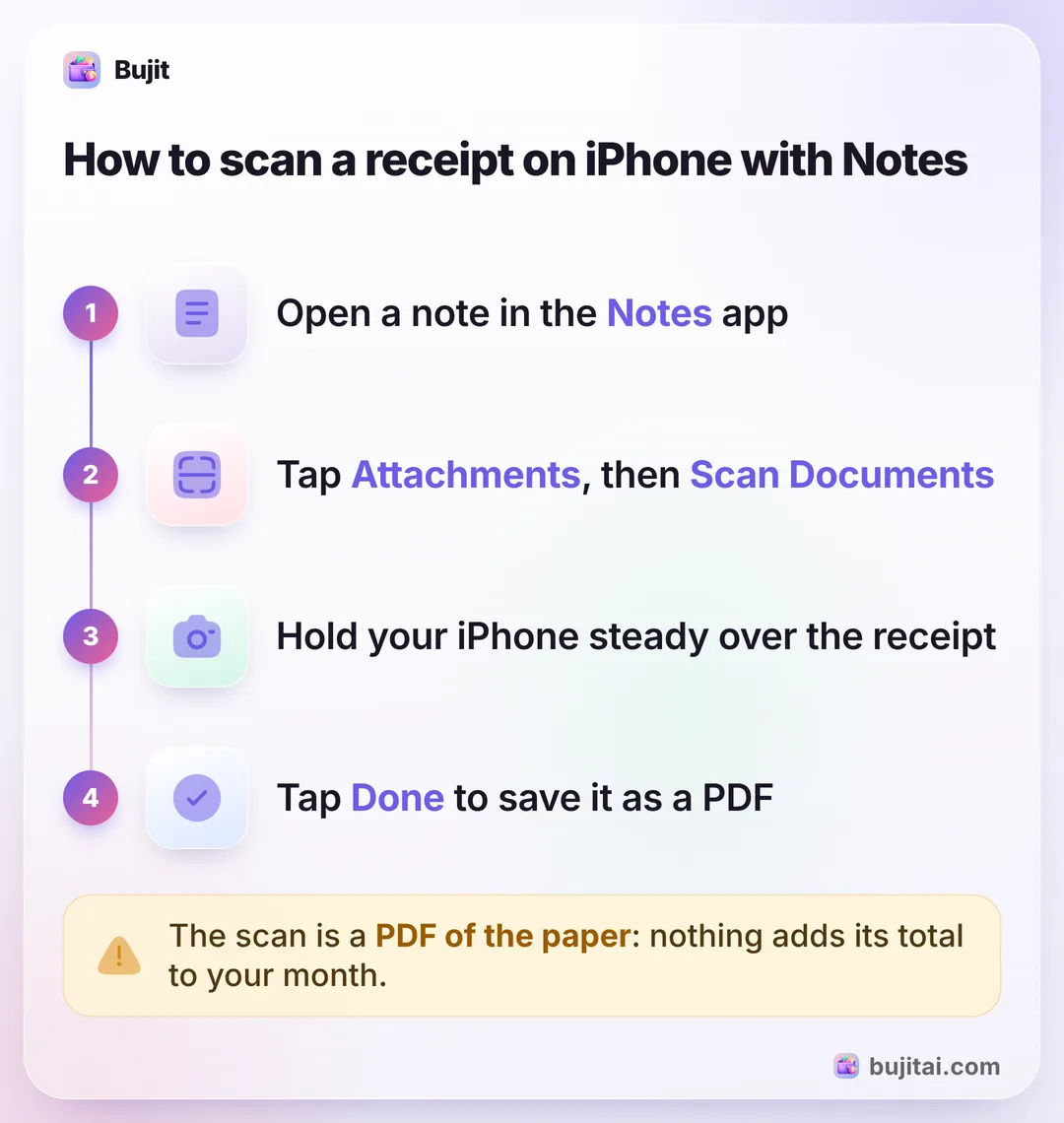
Notes is an easy way to scan receipts on iPhone, because it's already there and keeps each scan in a note you can find again. These steps are for iOS 27.
- Open the Notes app and open a note, or start a new one.
- Tap the Attachments button, then tap Scan Documents.
- Hold your iPhone steady over the receipt. You can turn on the flash or pick a filter first. In Auto mode, your iPhone captures the receipt as soon as it finds its edges. To take it yourself, tap the automatic capture button to turn it off, then tap Take Picture.
- Fit it to the receipt. If you took it yourself, drag the corners to fit, then tap Keep (Keep Scan on iOS 26). After an automatic capture, tap the thumbnail to adjust it.
- Scan the next one, or tap Done. Every page you scan before you tap Done goes into the same PDF in the note.
Want the total as text you can copy? In a note, tap the Attachments button, then Scan Text, point your iPhone at the receipt, drag to select the total and tap Insert. It works in the languages Live Text supports.
Other free ways: Files and Preview
Both scan much like Notes. Pick one when you'd rather keep receipts as PDF files than inside notes.
- Files: tap the More button (…), then Scan Documents. Scan the receipt, tap Done, choose a folder and tap Save.
- Preview: open the Preview app and tap Scan Documents. Your iPhone captures the page on its own; to take it yourself, tap Auto so it says Manual, then tap the shutter. Tap a thumbnail to crop or rotate it, and finish when you've scanned every page.
Receipts that arrive by email are a different job, with nothing to scan: keeping digital receipts in one place has its own guide. And if you scan receipts for work, the receipt scanner apps worth trying are compared there. Paid with Apple Pay and threw the receipt away? Finding a past Apple Pay purchase on iPhone takes a few taps in Wallet.
What a scanned receipt doesn't do
A scan in Notes, Files or Preview is a picture of the paper, saved as a PDF. That's a handy record of what you paid, though some shops still want the paper for a return. But it doesn't know the shop, the amount or the date, nothing adds it to a total, and it has no category. To know what you spent this month, you'd still type each amount into a spreadsheet or an app. Supermarket receipts are usually the biggest pile, and their totals are what a realistic grocery budget is built from.
| Notes | Files or Preview | Bujit | |
|---|---|---|---|
| Keeps a copy of the receipt | |||
| Reads the shop, total and date | You pick the text | ||
| Adds it to your monthly spending | |||
| Splits it into items | |||
| Comes with your iPhone |
How to scan receipts into Bujit, and log them
In Bujit, the app we make, one scan does both jobs: it keeps the receipt photo and turns the receipt into an expense.
In Bujit
Get Bujit- Tap + at the top right, then Scan Receipt. If you haven't turned on Bujit's AI features yet, it asks you first, and if you need Bujit Pro, it shows you the plans.
- Tap Open Camera and take a photo of the receipt, or Choose Photo to use one you already have.
- Check what Bujit read. It fills in the shop, the total, the date and a category. You can change the date on any receipt. On a receipt with one item, tap Edit to change the category. To fix the amount or the note, save it, then touch and hold the expense and tap Edit.
- Save it your way. A receipt with one item is saved as one expense when you tap Save. For a receipt with several items, tap Save as One for a single expense, or Save Itemized for one expense per item.
- Find the photo later. In your list of expenses, tap the receipt icon next to the time, or touch and hold the expense and tap View Receipt.
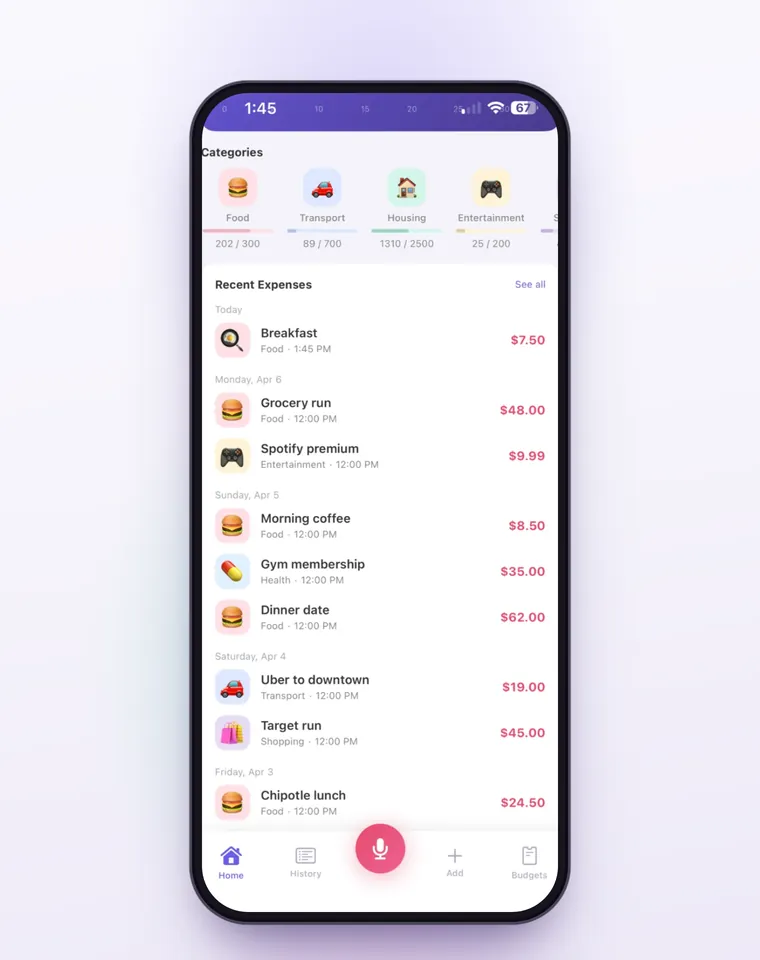
Receipt scanning is part of Bujit Pro. The photo is sent to our server and on to Google Gemini, which reads the shop, the amount, the date, the items and the category, and only after you agree. The expense and the receipt photo are stored on your phone, with no bank login and no account. Reading receipts is one of several jobs AI does in budgeting apps, along with sorting purchases and answering questions about them.
Which should you use?
- You only need a copy of the receipt: Notes, in a note you name after the shop.
- You want receipts filed as PDFs in folders: Files, which saves each scan to the folder you choose.
- You want each receipt counted in your monthly spending, without typing it: an expense app that reads receipts, like Bujit.
Scanning is one way in. Cash purchases don't show up on any statement, and counting your cash purchases keeps them in the month even when there's no receipt. If you're starting to keep tabs on your money, tracking every expense, receipt or not covers the whole habit. Once a month of receipts is in, turning those totals into next month's budget is the step after that. To see how the month splits between needs, wants and savings, check it against the 50/30/20 rule.
Questions people ask
Does iPhone have a built-in receipt scanner?
Not one made only for receipts, but the document scanner in Notes, Files and Preview works on them. In Notes, tap the Attachments button in a note, then tap Scan Documents. Your iPhone captures the receipt and saves it as a PDF.
Where do scanned receipts go on iPhone?
It depends on the app you scan with. In Notes, the scan is saved as a PDF in the note you scanned it into. In Files, you choose a folder and tap Save. In Preview, the scan becomes a PDF.
Can I scan several receipts at once?
In Notes, Files and Preview, you can scan one page after another before you tap Done, and they're kept together as one PDF. In Bujit, you scan one receipt at a time, and each one becomes its own expense, or one expense per item.
Can I copy the total from a receipt into a note?
Yes, in supported languages. In a note, tap the Attachments button, then tap Scan Text. Point your iPhone at the receipt, drag to select the text you want, such as the total, then tap Insert.
How do I scan receipts into Bujit?
Tap + at the top right, then Scan Receipt, and take a photo or choose one. Bujit reads the shop, the total, the date and the category, and saves the photo with the expense on your phone. Receipt scanning is part of Bujit Pro and sends the photo to Google Gemini, only after you agree.
Sources
- How to scan documents on your iPhone or iPad (Apple Support) (checked Oct 29, 2026)
- Scan text and documents in Notes using the iPhone camera (iPhone User Guide) (checked Oct 29, 2026)
- Scan text and documents in Preview on iPhone (iPhone User Guide) (checked Oct 29, 2026)