Quick answer
Open the Wallet app on your iPhone and tap a card to see its latest Apple Pay transactions, then tap one for details or to report an issue. On a Mac, iPad or Vision Pro, go to Wallet & Apple Pay settings, pick the card and open Transactions. For a complete record, check your card issuer's app or statement.
- Where
- Wallet, then tap a card
- How far back
- Latest transactions
- Connected cards
- Up to 2 years
- Full record
- Your card issuer
On this page
How to see Apple Pay transaction history on iPhone
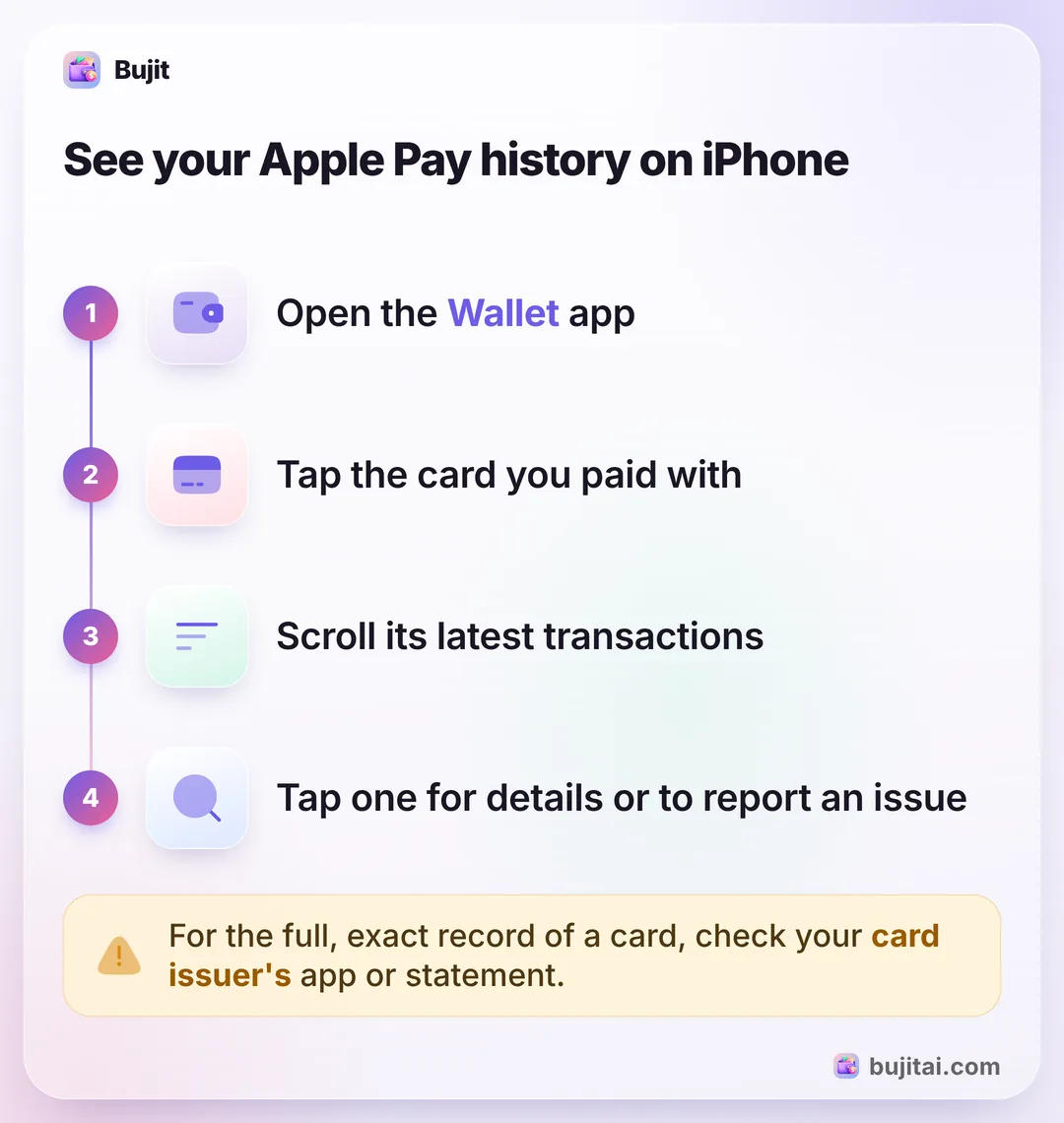
- Open the Wallet app on your iPhone.
- Tap a card to see a list of its latest transactions.
- Tap a transaction to see more details or to report an issue.
You might see transactions made with the physical card too, not only with Apple Pay.
If you have the latest version of iOS with Apple Intelligence turned on, Wallet can also show purchases it found in receipts in your Mail and Photos apps.
On Apple Watch, Mac, iPad and Vision Pro
On Apple Watch, open the Wallet app, tap a card, then tap a transaction for its details.
On a Mac with Touch ID, choose the Apple menu, then System Settings, then Wallet & Apple Pay. Select the card, then the Transactions tab. On an iPad or Vision Pro, go to Settings, then Wallet & Apple Pay, and do the same.
See up to two years with a connected account
Some card issuers let you connect your account to the card in Wallet. Once it's connected, Wallet shows your balance and up to two years of transactions, including purchases you didn't make with Apple Pay. It needs iOS 17.1 or later and an eligible issuer: in the UK that includes Barclays, HSBC, Lloyds, Monzo, Nationwide, NatWest, Santander and Starling, and in the US a similar feature works for PayPal debit cards.
- Open Wallet and tap the card you want to connect.
- Tap Get Started on the front of the card, or tap the More button, then Card Details.
- Tap Get Account Balance & Activity, agree to the terms and tap Continue.
- Sign in with your card issuer when it asks, and pick the right account.
Connecting means signing in to your bank through Wallet. If you'd rather not, the latest transactions are still there without it.
What Wallet doesn't show you
Wallet is a list of payments, card by card. That's enough to check a charge, and it stops there:
- Each card has its own list. There's no single total for the month across your cards.
- It keeps the latest transactions, not your full history, unless your issuer supports a connected account.
- Cash isn't in it, and neither are cards you don't use with Apple Pay, unless their account is connected.
- There are no budgets. Nothing tells you you're close to your limit for eating out, or to your budget for groceries.
- Some charges change. A transaction can look different from the final charge, so Apple sends you to your card issuer for the exact record.
| Wallet | Bujit | |
|---|---|---|
| Recent Apple Pay purchases | ||
| One list across all your cards | ||
| Cash in the same place | ||
| Budgets for each category | ||
| Ask questions about your month | ||
| Needs a bank login | To connect an account | Never |
How to log every Apple Pay purchase automatically
Bujit adds an action to the Shortcuts app. A Shortcuts automation runs it each time you tap your iPhone to pay with Apple Pay, and the purchase lands in Bujit with its amount, merchant and category. iOS 27 changed where automations live, so the steps depend on your version.
On iOS 27
In Bujit
Get Bujit- In Bujit, open Settings, tap Track Apple Pay, then Open Shortcuts. A new shortcut opens; if it starts on Describe a shortcut, tap Edit.
- In the action list at the bottom, tap the Automation chip, scroll to Apps and choose Wallet ("When I tap a Wallet Card or Pass"). Leave Any Category, Any Merchant and the Automation switch as they are.
- Search the actions for Bujit and pick Log Expense, not Open to Log Expense.
- For Amount, tap Select Variable, then Transaction, then tap the token and choose Amount. Do the same for Merchant.
- Tap the Info button, then Privacy, and check that Allow Running When Locked is on.
- Tap the check mark, then Back: the automation is saved and switched on. In Bujit, tap Test it to check that Bujit can log. It uses a test amount, so your first Apple Pay purchase in a shop is what shows the amount and merchant come through.
On iOS 17 to iOS 26
In Bujit
Get Bujit- In Bujit, open Settings and tap Track Apple Pay for a short video and these steps.
- In the Shortcuts app, tap the Automation tab, then New Automation.
- Tap Wallet, keep all cards selected, choose Run Immediately, then tap Next.
- Search the actions for Bujit and pick Log Expense, not Open to Log Expense.
- Set Amount to Shortcut Input, then Amount, and Merchant to Shortcut Input, then Merchant. Save it.
- Back in Bujit, tap Test it to check that Bujit can log. It uses a test amount, so your first Apple Pay purchase in a shop is what shows the amount and merchant come through.
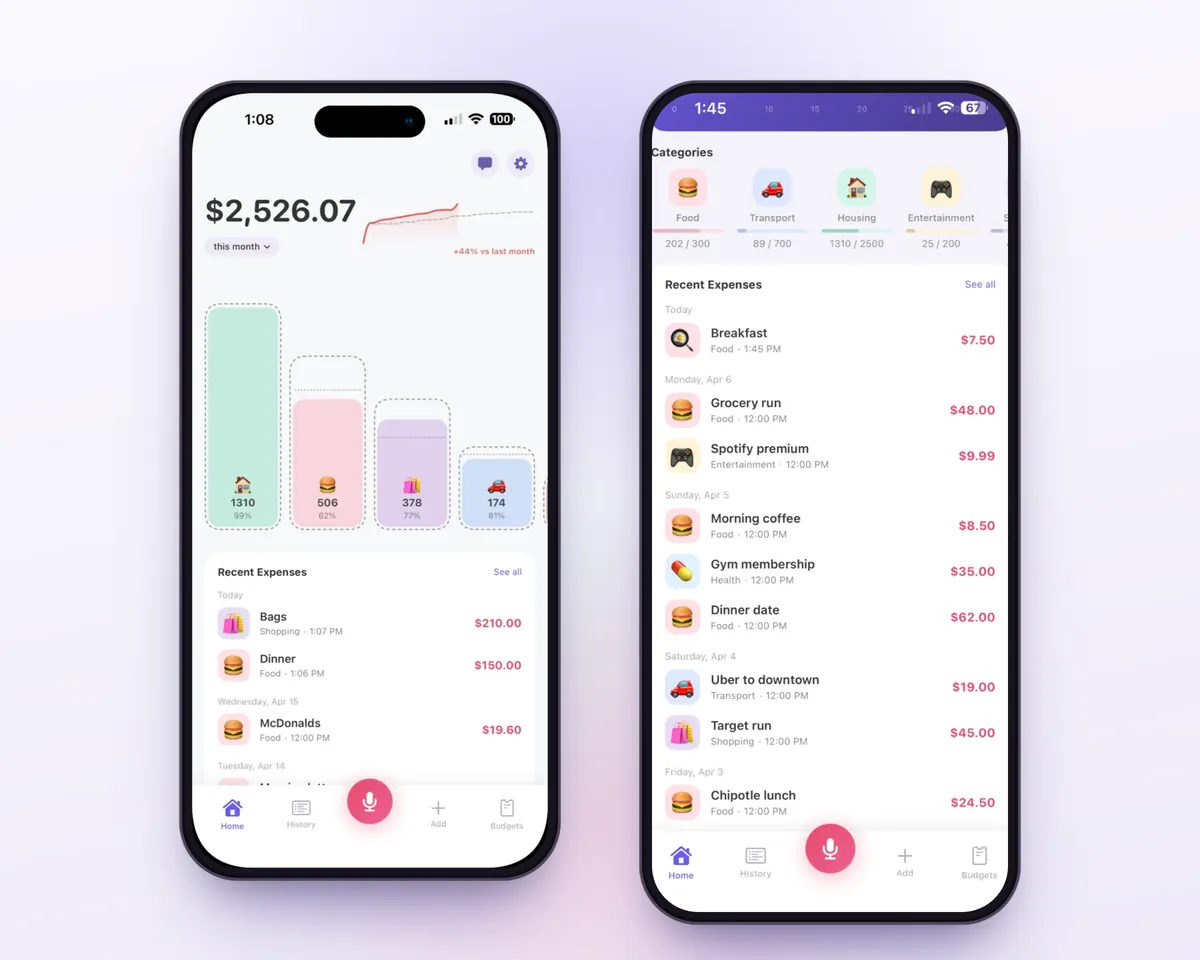
The automation runs when you tap your iPhone to pay. Apple doesn't promise it for Apple Pay in apps or on websites, so add those yourself if they don't show up. Each purchase is matched to a category from the merchant's name on your phone, and nothing about it goes to an AI service. For cash, say it out loud ("coffee, four fifty") or scan the paper receipt with your iPhone, and it joins the same month. More on that in how to track cash spending.
Which should you use?
- Checking one charge, or reporting a problem: Wallet. Tap the card, then the transaction. If the charge turns out to be an App Store subscription you no longer use, ending a subscription on iPhone takes a minute in Settings.
- The exact, complete record for a card: your card issuer's app or statement.
- Knowing where your money goes each month, across every card and cash, with budgets: Bujit, with the automation doing the logging. If you're starting from zero, how to track your expenses covers the habit itself. If you already have a budget that keeps slipping, here are habits that make a budget stick.
Questions people ask
Why can't I see all my Apple Pay transactions?
Wallet shows each card's latest transactions, not its full history, and some purchases can look different from the final charge. Apple points you to your card issuer for the most accurate record. If your issuer supports connected accounts, connecting the card in Wallet shows up to two years.
How far back does Apple Pay transaction history go?
For most cards, Wallet lists the latest transactions only. With a connected account from an eligible card issuer, on iOS 17.1 or later, you can see up to two years, including purchases you didn't make with Apple Pay. Anything older is in your issuer's statements.
Can I see Apple Pay history on my Apple Watch?
Yes. Open the Wallet app on your Apple Watch, tap a card to see its latest transactions, then tap one to see more details.
How do I see Apple Pay transactions on a Mac?
On a Mac with Touch ID, choose the Apple menu, then System Settings, then Wallet & Apple Pay. Select the card, then the Transactions tab, and select a transaction for its details.
How can I keep a record of every Apple Pay purchase?
Wallet won't keep one across your cards, so you either write each purchase down or let an app log it. Bujit's Shortcuts automation logs each Apple Pay purchase you tap your iPhone to pay for, with its amount and merchant, and sorts it into a category on your phone.
Does Bujit need my bank login to track Apple Pay?
No. Bujit has no bank login and no account. The Shortcuts automation hands Bujit the amount and merchant of each Apple Pay purchase, and Bujit sorts it into a category on your phone without sending it to an AI service.
Sources
- See your Apple Pay transaction history (Apple Support) (checked Oct 27, 2026)
- View your account balance and transaction history in the Wallet app (Apple Support) (checked Oct 27, 2026)
- Add automations to Shortcuts on iPhone or iPad (Shortcuts User Guide) (checked Oct 27, 2026)