Quick answer
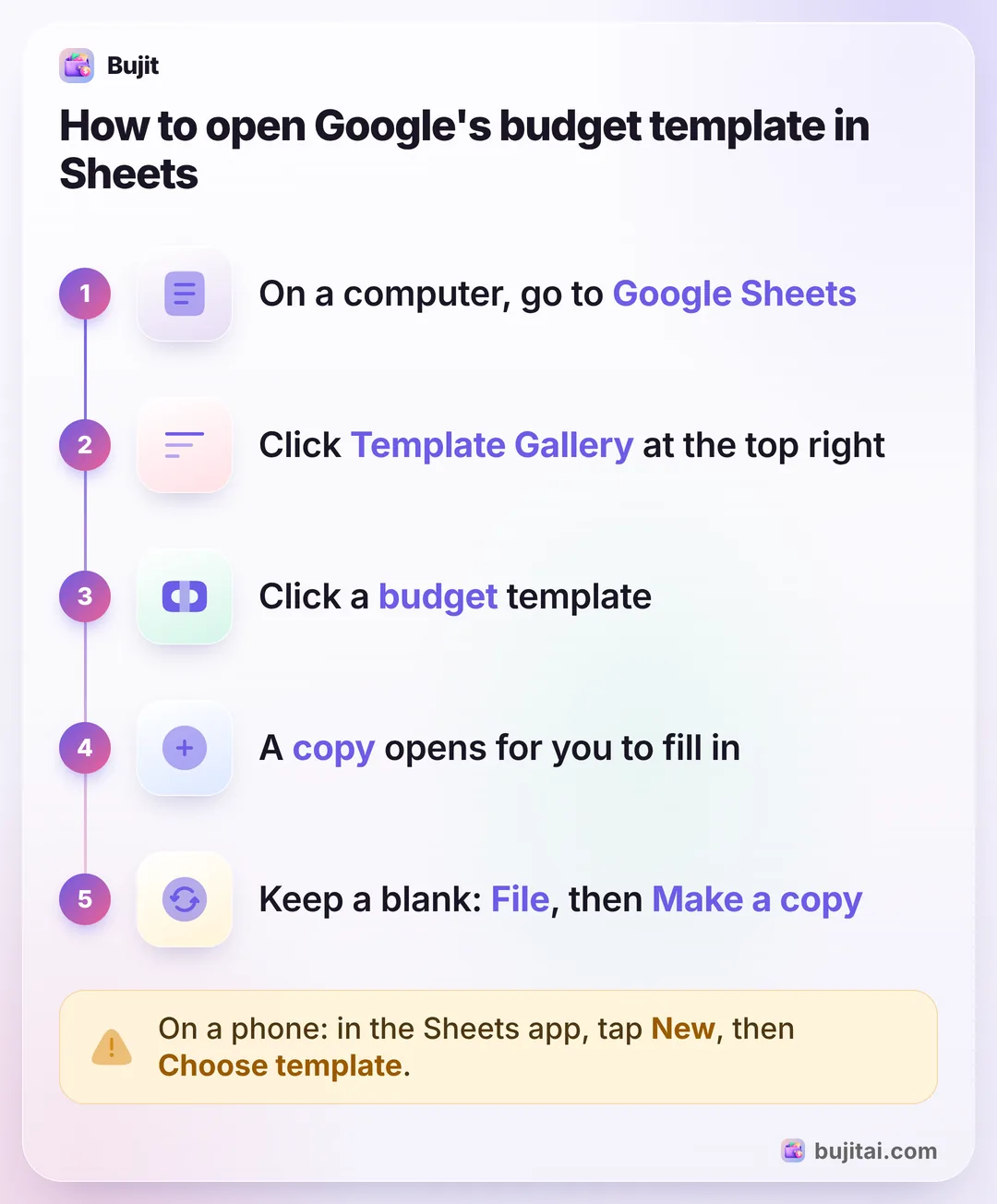
Google Sheets has budget templates built in. On a computer, go to Sheets, click Template Gallery at the top right and click a budget template; a copy opens for you to fill in. To build your own instead, list categories with a planned amount, log purchases on a second sheet, and total each category with SUMIF.
- Where
- Template Gallery, top right of Sheets
- On a phone
- Sheets app, New, Choose template
- Key formula
- SUMIF, one per category
- Next month
- File, then Make a copy
On this page
How to open Google's budget template in Google Sheets
Google makes its own templates for Sheets, and budgets are among them. They're free with a Google account and open as your own copy, so you can change anything. Before you fill one in, have your numbers ready: working out your monthly income and expenses takes one evening with your pay stubs and bills.
- Open Google Sheets on a computer. Go to Google Sheets in your browser and sign in to your Google account.
- Click Template Gallery. It's at the top right of the Sheets home page. Don't see it? Click Menu at the top left, then Settings, and turn on Display recent templates on home screens.
- Click a budget template. A copy of the template opens, yours to edit.
- Keep a blank copy for next month. Before you fill it in, click File, then Make a copy, type a name and choose where to save it. At the start of each month, copy that blank one again.
- Make it yours. Rename this month's copy and fill it in with your own numbers.
On a phone, open the Google Sheets app on iPhone, iPad or Android, tap New in the bottom corner, tap Choose template, then tap the template you want.
How to build your own budget template in Google Sheets
A template of your own takes longer to set up, but it has exactly your categories and does exactly the sums you want. You need two sheets in one file: Budget for the plan and Transactions for every purchase.
- Set up the Budget sheet. In row 1, type four headings: Category, Planned, Spent and Left. From row 2 down, list your categories in column A and what you plan to spend on each in column B.
- Set up the Transactions sheet. Add a second sheet and name it Transactions. Give it four headings: Date, Description, Category and Amount, so categories end up in column C and amounts in column D.
- Add a category dropdown. On Transactions, select the Category cells from C2 down, click Data, then Data validation, then Add rule. Under "Criteria," choose Dropdown from a range, select your categories on the Budget sheet and click Done. Every purchase now gets a category from your list, spelled the same way.
- Total each category with SUMIF. On the Budget sheet, in C2, type
=SUMIF(Transactions!C:C, A2, Transactions!D:D)and copy it down. It adds up every purchase whose category matches the name in column A. In D2, type=B2-C2and copy it down to see what's left. - Turn overspending red. Select the Left column, click Format, then Conditional formatting. Under "Format cells if," choose Less than, enter 0, pick a red fill and click Done. A category that runs over turns red.
Here's how the Budget sheet reads partway through a month, with made-up numbers:
| Planned | Spent | Left | |
|---|---|---|---|
| Housing | $1,550 | $1,550 | $0 |
| Food | $500 | $362 | $138 |
| Transport | $400 | $215 | $185 |
| Shopping | $250 | $274 | -$24, in red |
| Fun | $150 | $60 | $90 |
Not sure which categories to list? A short list of categories most budgets start from fits on one screen. Working in Excel instead? The same SUMIF formula works there, and setting up a budget template in Excel walks through the Excel menus.
What a spreadsheet budget doesn't do
- It only knows what you type in. Every purchase is a new row with four cells. Miss a few days and the Spent column is wrong without telling you.
- It's slowest where you spend. You're at a checkout or a gas pump with your phone in hand. Adding a row there means opening the file, finding the next empty row and typing into small cells.
- It warns you only when you look. The red Left cell appears when you open the sheet, not when you pay.
- Cash needs remembering. A card purchase is at least in your bank statement later. Cash leaves no record unless you write it down.
| Your own Sheets template | Bujit | |
|---|---|---|
| Plans income and savings | Any rows you like | No, spending only |
| Totals each category | With SUMIF | Spent of each limit, with a bar |
| Adding a purchase on your phone | A new row with four cells | Manual Entry, or a Shortcuts automation for Apple Pay taps on iPhone |
| Warns before a category runs out | No, turns red once it's over, when you open the sheet | A banner when you add an expense in the app |
| Needs an account | A Google account | No account |
| Needs a bank login | No | No |
How to use Bujit next to your Google Sheets budget
Bujit, the expense tracker we make, doesn't connect to Google Sheets. It can sit next to your sheet, though: the plan stays in the sheet, and Bujit does the logging while you're out. No bank login, no account.
In Bujit
Get Bujit- Keep the plan in your sheet. Each category's planned amount stays in the template, along with income and savings if you've added rows for them.
- Copy the spending plan into Bujit. Open Budgets, tap Set on the Monthly Budget card (or Edit total budget once it has one), enter the total of your sheet's spending categories as the Amount and tap Save. Then tap Set a budget under each category, enter its planned amount and tap Save. To match a category from your sheet, tap the gear on Home, then Categories, then +.
- Choose when to hear about it. Drag Notify me at on a category's card to the percentage you want, such as 80%. A banner tells you when an expense you add in the app passes it.
- Log as you pay. Tap + at the top right, then Manual Entry, enter the amount, what it was for and the category, and tap Save.
- Fill in the sheet once a month. On the 1st, open History, tap This Month and choose Last Month, then tap a category to see its total. On last month's Transactions sheet, add one row per category with that total, and SUMIF fills in Spent.
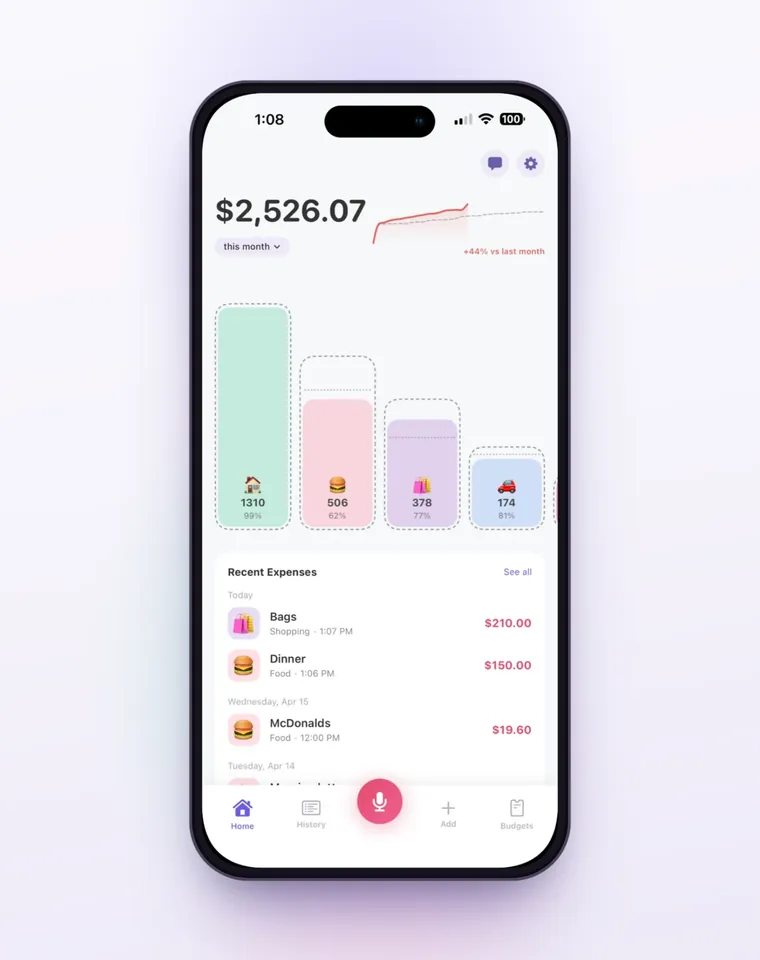
Budgets in Bujit count the calendar month and start again on the 1st, with nothing carried over, the same as a new copy of your sheet. A category's card says Approaching limit past 80% and Over budget by the amount once you pass it. On iPhone, a Shortcuts automation can log each Apple Pay purchase when you tap your iPhone to pay; it sorts them into Bujit's six built-in categories, so if your sheet uses other names, touch and hold a tap in History, tap Edit and move it before you copy the totals. Those taps don't show the budget banner when you pay. Voice entry and receipt scanning are part of Bujit Pro; they send what they need to Google Gemini, and only after you agree. Your expenses are stored on your phone.
Which should you use?
- You want a budget in Sheets today: Google's own template from the Template Gallery, filled in with your numbers.
- You want your categories and your formulas: your own template with a Budget sheet, a Transactions sheet and SUMIF.
- You do most of your budgeting at a laptop once a week: either template, filled in from your bank and card statements.
- You'd rather log purchases on your phone as you pay: keep the plan in Sheets and log in an expense app like Bujit, then copy the totals across once a month.
Whichever you pick, set a time to fill it in, like Sunday evening. A template nobody updates is just last month's plan.
Questions people ask
Does Google Sheets have a budget template?
Yes. Google's own templates include budgets, alongside resumes and order forms. On a computer, go to Google Sheets, click Template Gallery at the top right and click the template you want. A copy of it opens for you to fill in.
Why can't I see the Template Gallery in Google Sheets?
It can be hidden. On the Sheets home page, click Menu at the top left, then Settings, and turn on Display recent templates on home screens. Template Gallery then shows at the top right again.
Can I use a Google Sheets budget template on my phone?
Yes. In the Google Sheets app on iPhone, iPad or Android, tap New in the bottom corner, tap Choose template, then tap the template you want to use.
How do I make my own budget template in Google Sheets?
Make one sheet with your categories and a planned amount for each, and a second sheet for purchases with a date, a description, a category and an amount. Add a dropdown to the category column, then total each category on the first sheet with SUMIF.
What formula adds up a budget category in Google Sheets?
SUMIF. With purchases on a sheet named Transactions, categories in column C and amounts in column D, =SUMIF(Transactions!C:C, A2, Transactions!D:D) adds up every purchase whose category matches the name in A2.
How do I reuse my budget template next month?
Keep a blank copy. Before you fill in your template, click File, then Make a copy, give it a name and choose where to save it. At the start of each month, make a copy of that blank one, so last month's purchases stay behind.
Does Bujit work with Google Sheets?
Not directly: Bujit doesn't connect to Google Sheets. You can keep the plan in your sheet and log purchases in Bujit as you pay, then add each category's monthly total from Bujit's History to the sheet at the end of the month.
Sources
- Use templates, computer (Google Docs Editors Help) (checked Nov 13, 2026)
- Use templates, iPhone and iPad (Google Docs Editors Help) (checked Nov 13, 2026)
- Use templates, Android (Google Docs Editors Help) (checked Nov 13, 2026)
- SUMIF (Google Docs Editors Help) (checked Nov 13, 2026)
- Create an in-cell dropdown list (Google Docs Editors Help) (checked Nov 13, 2026)
- Use conditional formatting rules in Google Sheets (Google Docs Editors Help) (checked Nov 13, 2026)